F-Register
F-Register product manual
Reference for F-Register settings, cooling installations, comfort/process systems, heat pumps, combustion appliances and maintenance.
Manual / reference
How to configure F-Register logically.
This page is a reference for admins, planners and technicians. It starts with the settings tiles and then explains the daily workflow. Vehicles will be added later; for now the focus is cooling installations, comfort/process systems, heat pumps and combustion appliances.
Settings
Explanation per settings tile.
Company details
Enter company name, address, contact details, logo and certificates. These details are used on work orders, reports, labels and audit documents.
Branding
Configure header, side menu, text and F-Register colours. Use reset when a colour combination is not readable enough.
Users and roles
Manage employees, technicians, employment type, certificates, permissions and customer portal access. Technicians can update their own account and signature.
Installations
Manage outdoor unit types, indoor unit types, combustion appliances, flue choices and visibility of optional fields.
Refrigerants
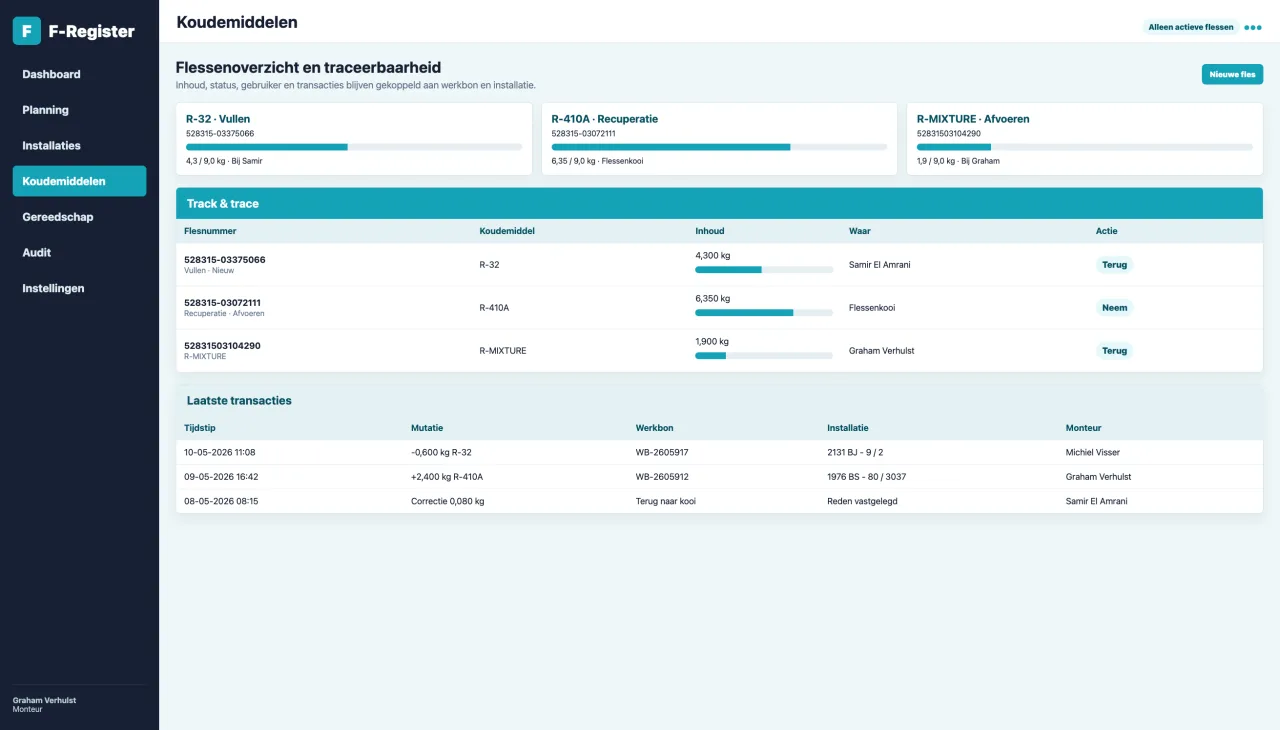
Manage refrigerant types, GWP, classification and cylinders. Cylinders show contents, status, user, transactions, invoices and corrections.
Tools
Register measuring tools with serial number, purchase date, calibration, reports, assigned technician and ATEX or HD/R744 suitability.
Work orders
Configure types, statuses, numbering, report settings, planning and automatic mail rules. Draft work orders stay in the queue.
Maintenance forms
Choose which fields are visible for comfort, process and major maintenance. Fields you do not use stay out of the form and reports.
Actions & forms
Build custom actions, show fields conditionally, and decide whether saving them commissions or decommissions an installation, records maintenance/inspection, updates refrigerant accounting or starts mandatory leak follow-up.
Combustion appliances
Configure installation fields, maintenance fields and installation actions for BRL 6000-25/K25000, including flue measurements and CO checks.
Documents
Use the document browser for folders, upload, quickview, download and storage limits. System folders remain protected.
Audit
View F-gas balance, leakage loss, tools, certificates, contractor agreements, evidence documents and installation audits. Excel export is available per section.
Mail templates
Manage subjects and mail text with placeholders such as work order number, execution date, customer name and portal link.
Actions & forms
Show the right fields at the right time.
Open a field's Conditions tab in the form builder. Search for a source, choose a comparison and, when needed, enter a value. Add up to three conditions; all must match. Headers and subheaders do not have conditions.
Read-only installation sources
Use the saved outdoor-unit serial number, refrigerant, maintenance contract, nameplate, logbook status or hermetic status. Inside an indoor-unit block, the pump and serial number refer to that particular unit.
For example, show a serial-number question when OUTSIDE_UNIT_SERIAL is empty, or a pump check when INSIDE_UNIT_PUMP = Yes.
Earlier form answers
FORM:<field key> refers to an earlier question in the form. INSIDE_FORM:<field key> refers to an earlier answer from the same indoor unit. Later questions and the field itself cannot be sources.
For example, show a leak explanation when an earlier leak question was answered Yes.
Available comparisons are equals, not equals, empty and not empty; less than and greater than apply only to numeric sources. A hidden field is not required. The server reevaluates conditions before saving and ignores hidden answers, uploads and integration actions. Saving a draft leaves the published version unchanged; publishing creates the next version. A work-order action retains its form version, condition outcomes and original installation and indoor-unit source values so later edits remain reproducible.
Calculated fields and validation
Combine earlier numeric answers or constants using addition, subtraction, multiplication, division or percentages. Use a calculated value in a later condition. You can also make a field conditionally required or compare a number with a limit; choose a warning or a blocking error. The server recalculates values instead of trusting the browser.
Preview before publishing
Choose Test logic in the editor. Enter sample installation answers and separate values for two indoor units. The preview shows visibility, requirements and calculated outcomes without writing anything to the database. Save a draft, publish after checking it, then perform a final test on a test work order.
Visibility options
Fields normally appear in the form and report. Hide in form is available for calculated helper fields. Hide in report omits a value from reports. Internal only keeps data available to staff while excluding it from customer reports, the portal and external APIs, including material lines created by the form.
Important: a condition source only reads a saved value. A visible F-Register integration field can still update installation data or refrigerant accounting when the action is saved. Some installation fields default to No; a saved No is different from an empty value.
Audit / personnel
Hiring agreements for external contractors.
Use this dossier to keep the assignment, certificates and signed hiring agreement for each external contractor together. Employees on payroll do not need this document and must keep the employment type Employee.

Users and roles
- Open or create the external technician.
- Set the role to Technician and employment type to Contractor / hired.
- Add a supported personal certificate with certificate number and a current Valid until date.
- Keep both the user and employee profile active.

Audit
- Open Contractor / hiring agreements and choose Add hiring agreement.
- Complete the contractor business, company certificate and assignment details.
- Save the dossier and send the agreement for digital signature. F-Register fills in the known company, contact and certificate details and uses the company contact’s saved signature.
- The hired technician reviews the full agreement and signs it securely under My account.
Audit trail: after the technician signs, F-Register automatically generates the final PDF and activates the dossier. Both signatures are stored as snapshots together with the signing time, user and document hash. The agreement is never silently overwritten, and the technician can view the current document under My account.
Cooling / comfort and process
From customer to installation and work order.
- Create the customer or import customer data.
- Add an installation address. For private customers, contact person may stay empty.
- Create the cooling installation or heat pump with brand, type, refrigerant, indoor units and documents.
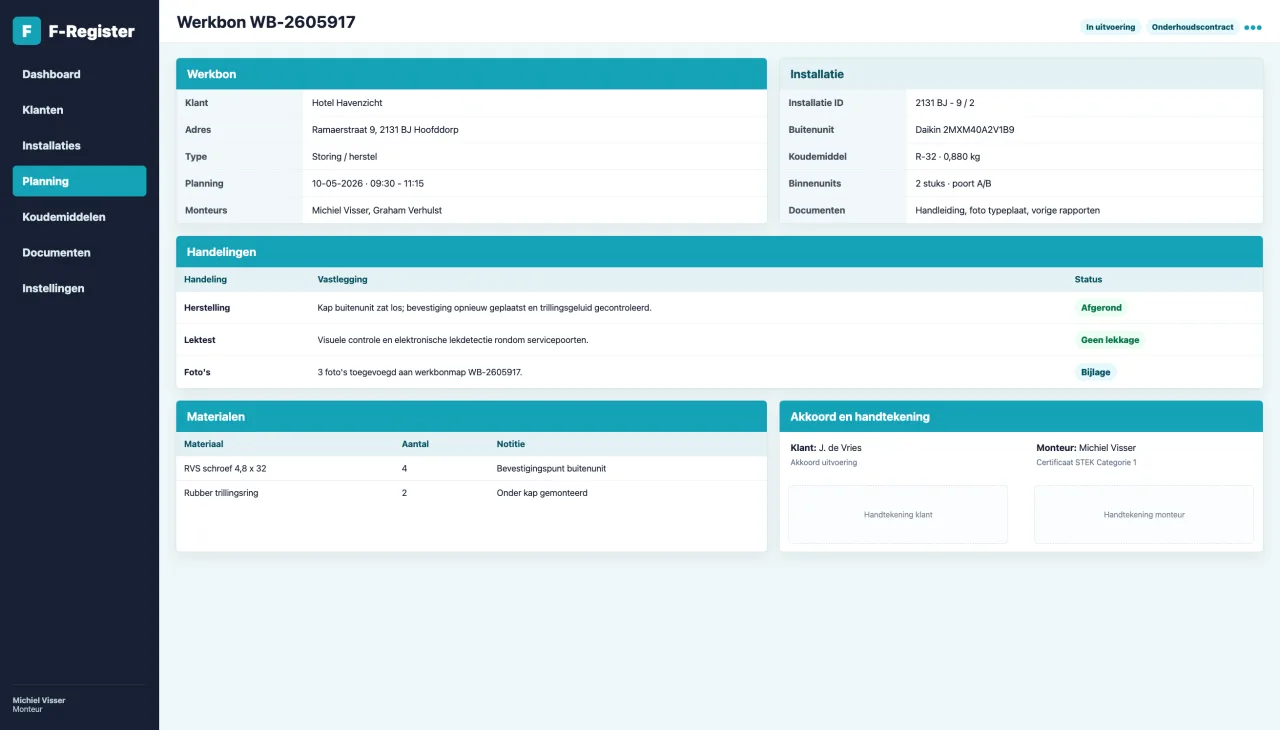
- Create a work order from customer, site or installation. If no installation exists yet, it can be created from the work order.
- Add actions such as maintenance, heat pump commissioning, repair, charging, recovery or dismantling.
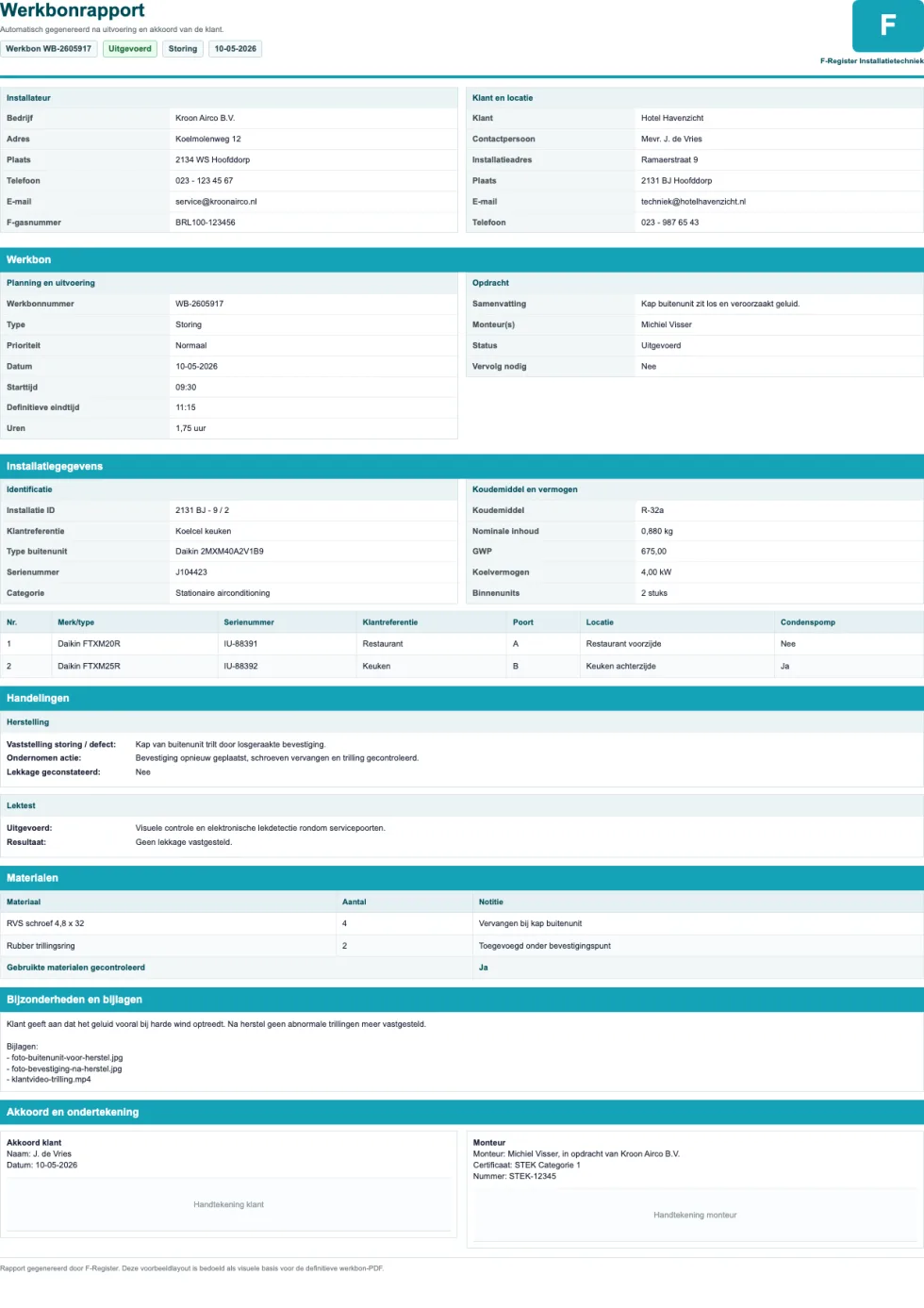
- Capture customer and technician signatures and generate the report.
Action-driven history: the work-order type classifies and schedules the job. The recorded action determines commissioning, decommissioning, maintenance and leak follow-up. A leak follow-up is created only when the fixed Leak detected field is Yes and refrigerant was actually added in the same action.
Combustion appliances
Boiler, flue system and CO check in the same workflow.
- Enable the combustion appliance module from the monitor.
- Configure appliance types and flue choices under settings.
- Add the combustion appliance at the site, optionally linked to a hybrid heat pump.
- Use work orders for installation, maintenance/CO checks and flue inspection.
- Record gas supply pressure, CO, CO2, O2, burner pressure, gaskets and safety checks.
- Generate the report and inspection label for the installation history.
Maintenance
Schedule maintenance from contract, region and time slots.
Installations with maintenance contract appear in the maintenance overview. Planning filters by postcode area and period.
Customers receive an email with available slots. The mail template uses placeholders for date, customer and portal link.
The customer reserves one slot. Changes afterwards go through planning to prevent double bookings.
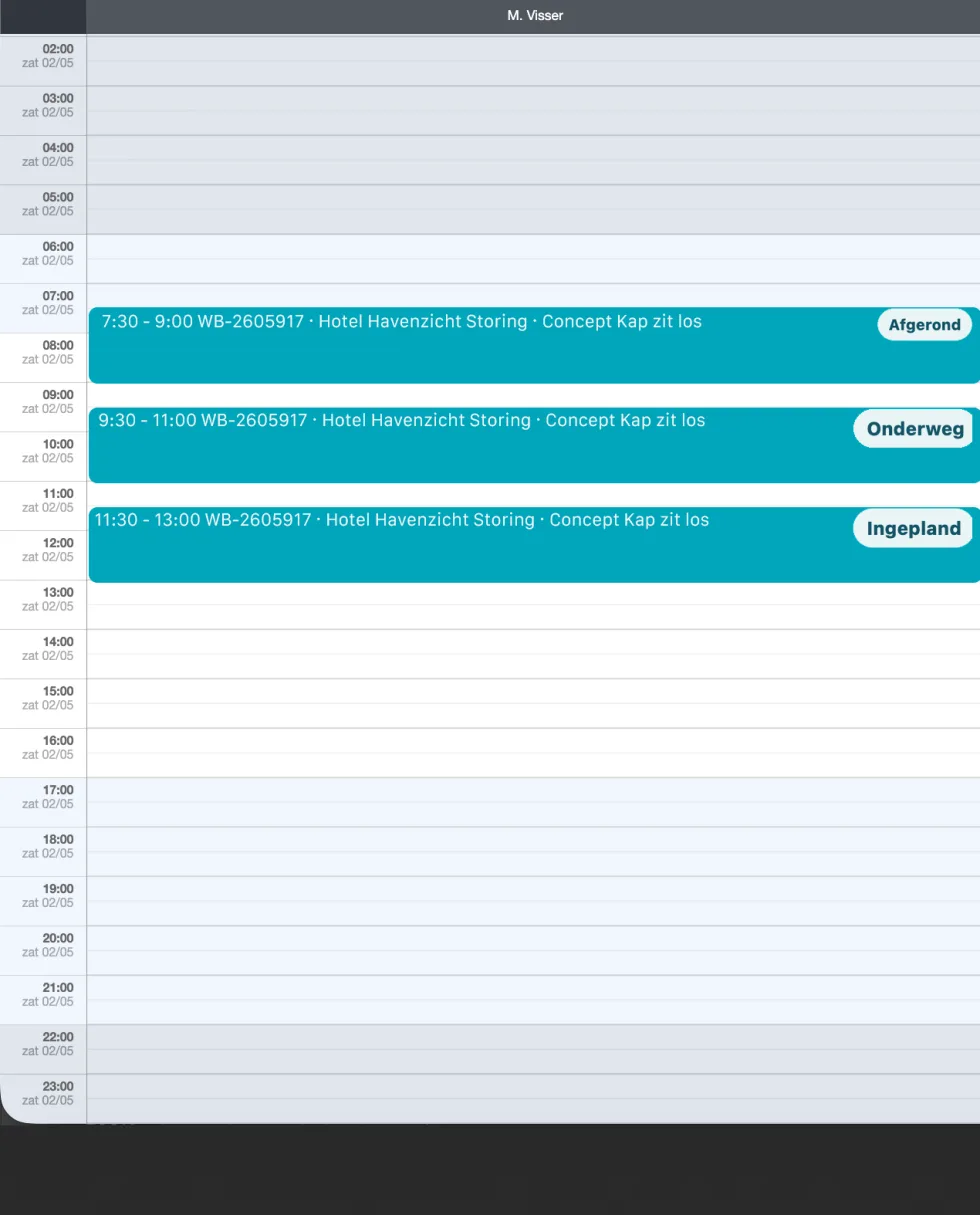
The reserved appointment becomes a work order in the queue with preferred date and time.
Planning assigns a technician. The technician completes maintenance, uploads photos if needed and captures the signature.
Transition from version 1.0.6: completed maintenance work orders from before the transition remain part of the existing maintenance history. After the transition, a new maintenance date is recorded only by an action configured as Maintenance/inspection. The Maintenance work-order type or text containing the word maintenance does not move the maintenance schedule by itself.
Screenshots and video
Examples from the system.